Cloud · 01
Overview
The header, account menu and settings every Zym Labs product shares.
The Cloud console is the frame around every Zym Labs product: the dark header with the logo, the workspace switcher, notifications and your account menu. This page explains what's in that frame so each product's own pages can skip it.
The header
From left to right:
- Logo returns to the console home.
- Product label names the product you're in; where you have several, it opens the app switcher.
- Workspace switcher shows the current workspace and lets you change it (see Workspaces and environments).
- Staging tag, in amber, appears only in a staging environment.
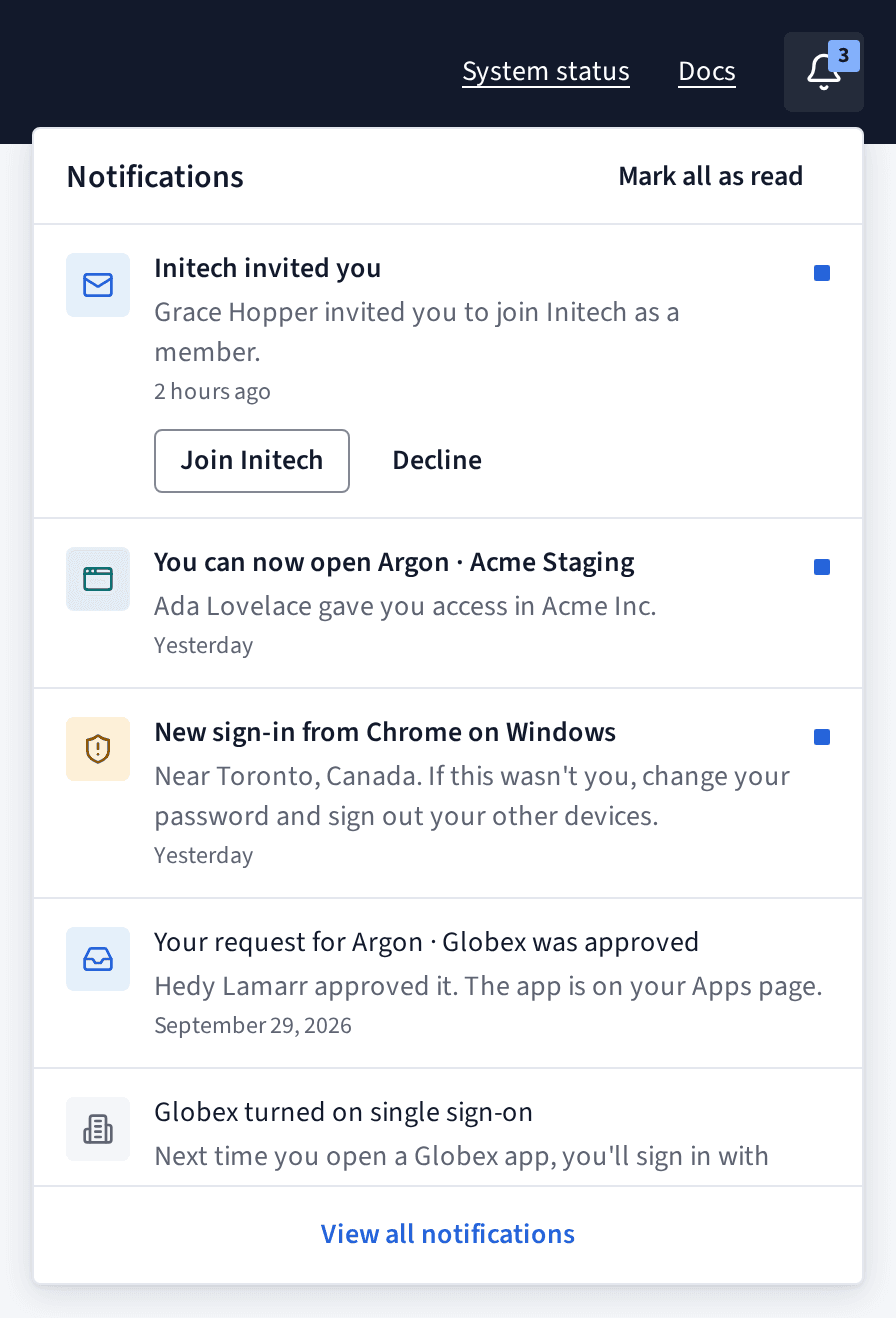
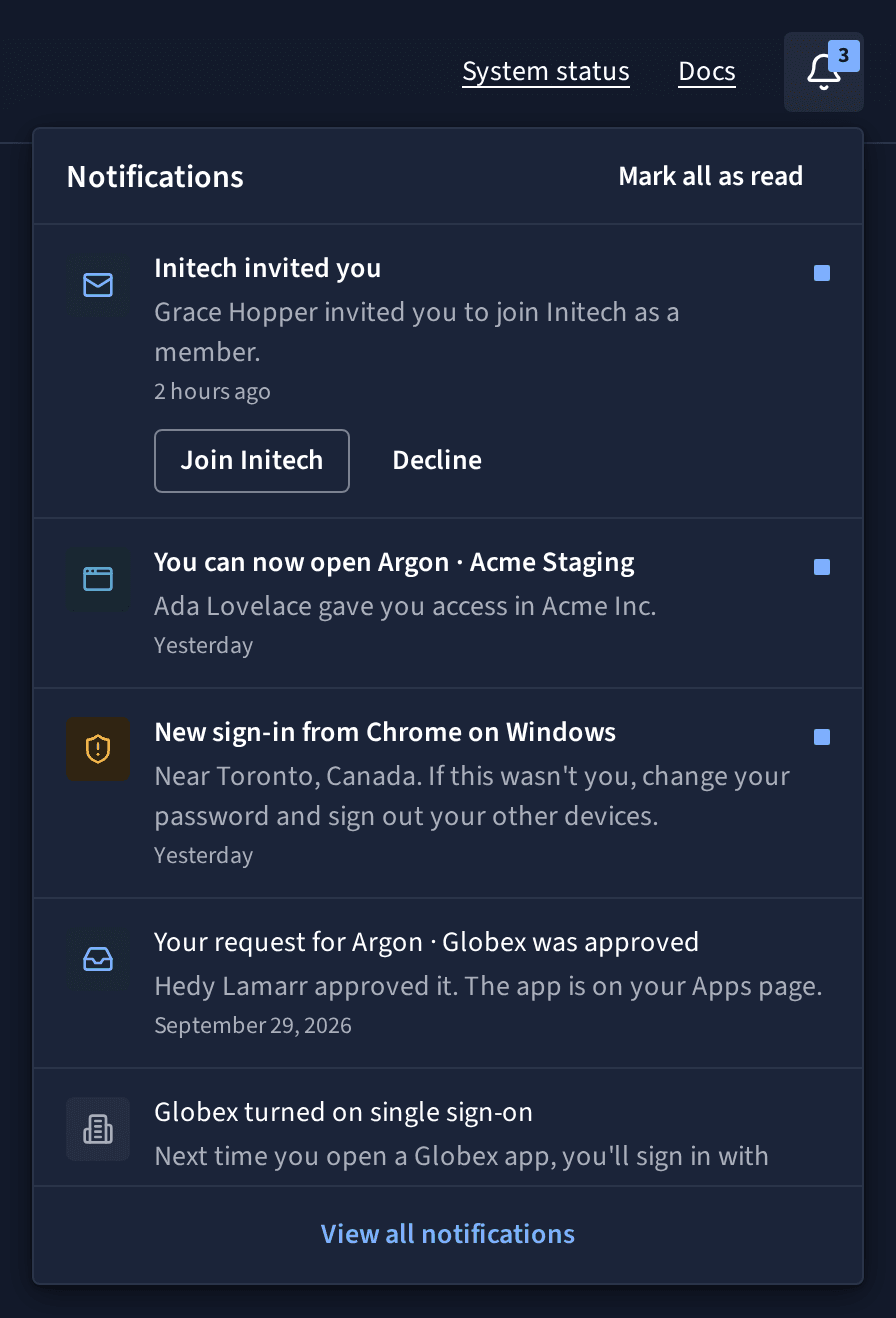
- Notifications lists what changed while you were away, newest first.
- Account menu holds your profile, language, theme and sign-out.
Language and theme
The console comes in 12 languages, including right-to-left ones. Pick yours in the account menu under Language; dates and numbers follow.
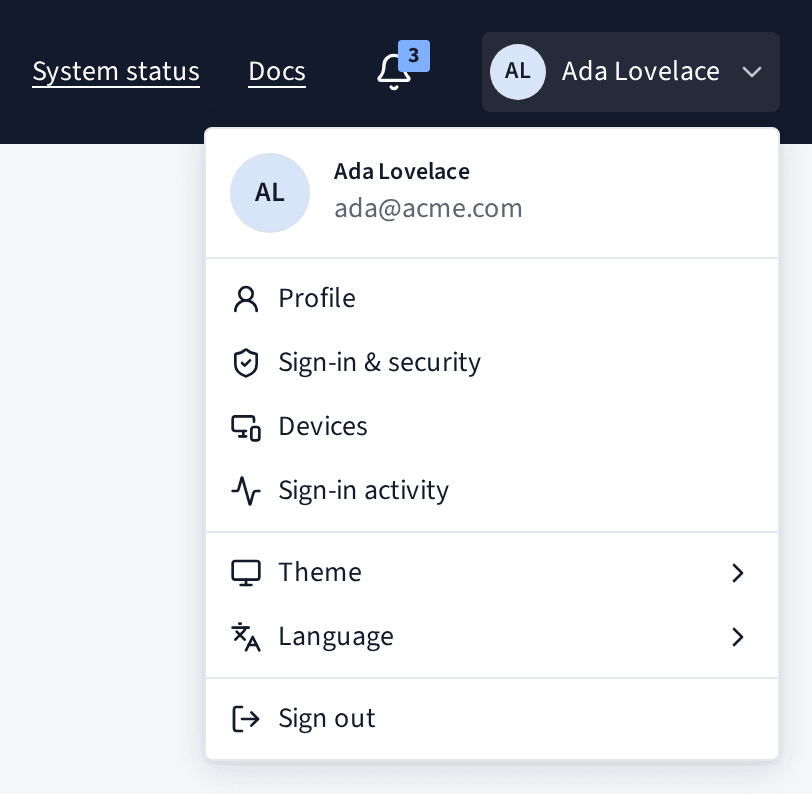
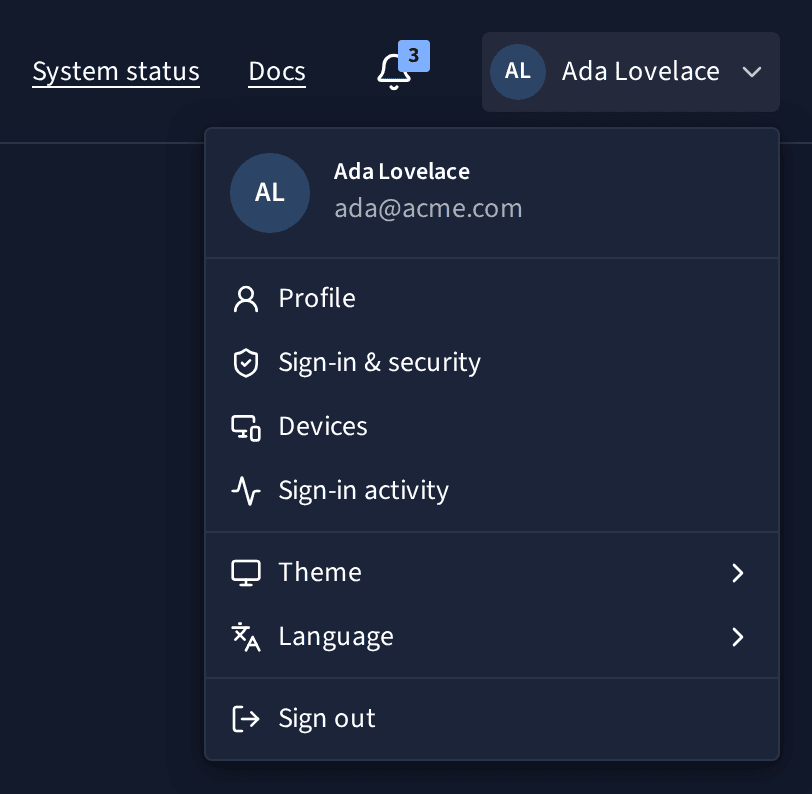
Theme offers light, dark and system. Both themes stay in the blue family: pages are white or blue-black, with the same blue for links and buttons.
Notifications
The bell in the header shows a count of unread notifications. Open it to read them; older ones load as you scroll. A notification about a workspace you've left stays readable but no longer links anywhere.
Sign out
Choose Sign out from the account menu. That ends your session in every product at once.
What's next
- Sign in: create your account and open the console.
- Workspaces and environments: where your data lives.