Writing these docs · 03
Components
The callouts, steps, tabs, cards, screenshots and code blocks a page can use.
Pages are Markdown, with a few components for the things Markdown can't say. None of them need an import.
Callouts
Use sparingly: at most one per screen, 1 or 2 sentences. Each starts with its label, so the meaning never relies on colour.
<Callout type="note">Helpful context the reader can skip.</Callout>
<Callout type="keep-in-mind">Something that will surprise people if they miss it.</Callout>
<Callout type="warning">An action that can lose data, cost money or break production.</Callout>
<Callout type="plan" title="Plan: Team and Enterprise only">
  What the plan limits.
</Callout>Fumadocs' names (info, warn, error) map onto these, so copied examples still work.
Steps
A numbered list where each step has a heading and its own paragraphs. Keep the blank lines inside each step: without them the heading and the text run together.
<Steps>
<Step>
### Create a message

Go to **Messages** and choose **Create new template**.

</Step>
<Step>
### Send a test

Choose **Send test** and enter your own email address.

</Step>
</Steps>
Create a message
Go to Messages and choose Create new template.
Send a test
Choose Send test and enter your own email address.
Tabs
For the same task in different tools or languages. Name each tab with a noun.
<Tabs items={['npm', 'pnpm']}>
  <Tab value="npm">`npm install @zymlabs/ui`</Tab>
  <Tab value="pnpm">`pnpm add @zymlabs/ui`</Tab>
</Tabs>
npm install @zymlabs/uiCards
Links to the next pages, with a line on each:
<Cards>
  <Card href="/docs/argon" title="Argon">
    Audiences, journeys and messages.
  </Card>
  <Card href="/docs/cloud" title="Cloud console">
    Account, workspaces, notifications.
  </Card>
</Cards>Screenshots
A screenshot shows what words can't: a layout, where a control sits, what a result looks like. Use one where the reader needs to recognize a screen, not for every step; the steps already name each button in bold.
<Screenshot
  product="cloud-console"
  scene="members"
  alt="The Members page, listing 3 people with their roles and a pending invitation."
  caption="Optional: what the text around it doesn't already say."
/>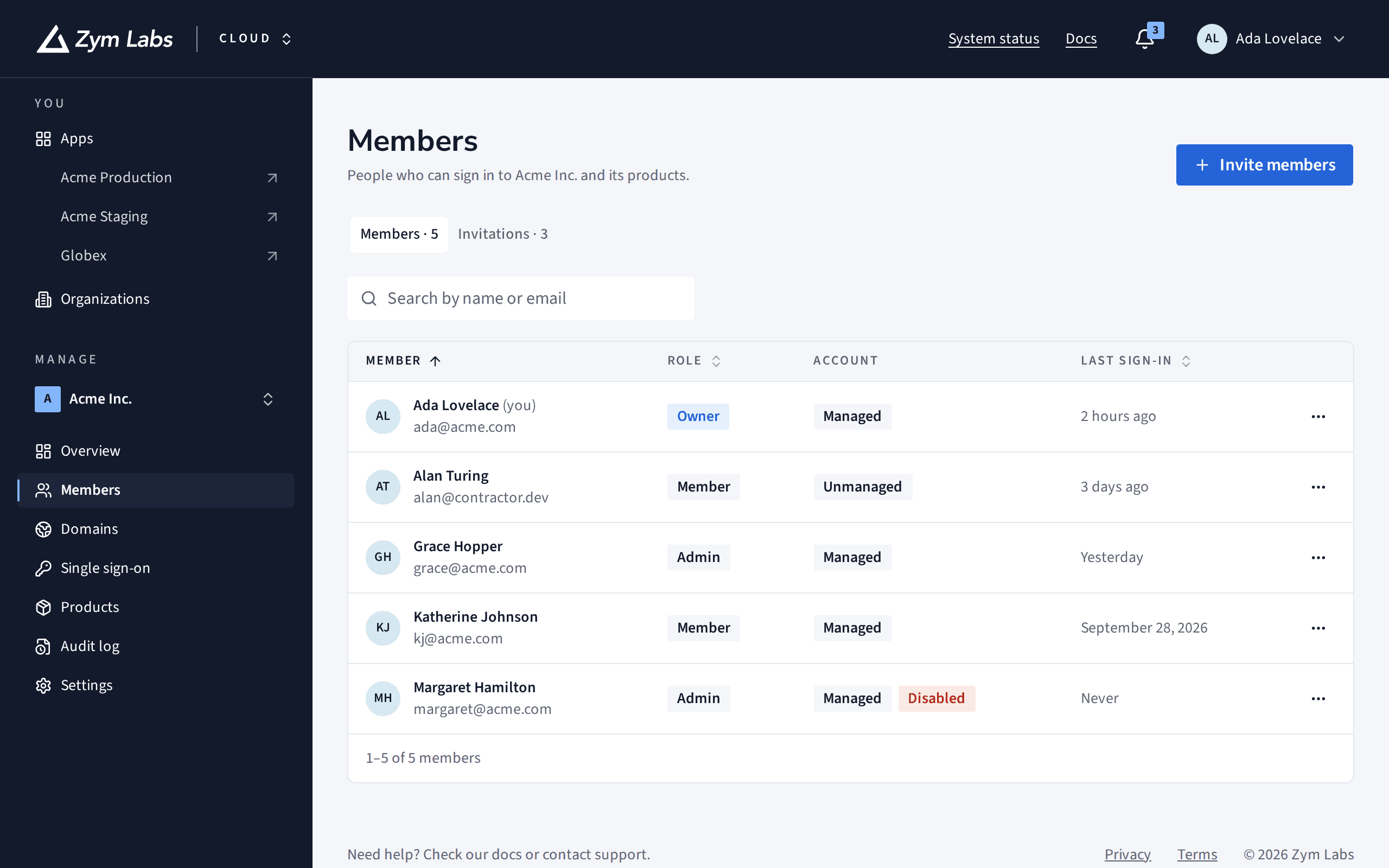
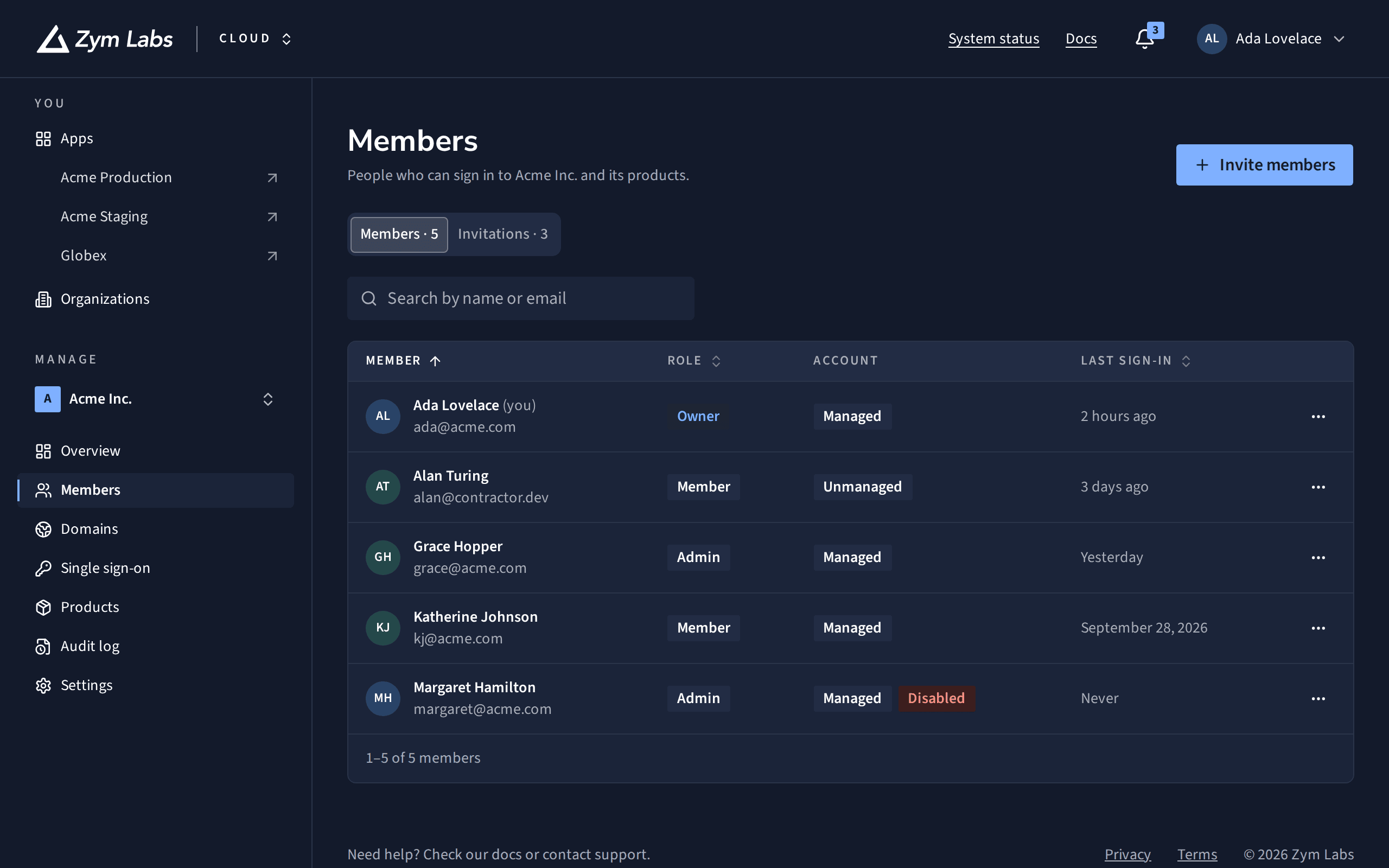
Each product captures its own screenshots, in light and dark, from its code with made-up data, so they stay current without anyone retaking them. A page names a scene, never a file, and shows the capture that matches the reader's theme. The scenes each product has are listed in public/screenshots/<product>/manifest.json.
- Alt text says what the reader should see ("The Members page, listing 3 people"), not that it's a picture. Start from the scene's title in the manifest.
- No arrows or boxes drawn on it. If something needs pointing out, say it in the text or the caption.
- A scene that isn't there is added in the product's repository, in its list of docs scenes. Then run its
docs-screenshotsjob and import the result:
npm run screenshots:import -- ../cloud-console/tmp/docs-screenshots/cloud-consolenpm test fails if a page names a scene that doesn't exist or leaves out the alt text.
Code blocks
Code sits on blue-black in both themes, with a copy button. Set the language, and a title where the reader needs the file name. Don't include a shell prompt in commands people will copy.
```bash title="Terminal"
npm run build
```npm run buildimport { defineDocs } from 'fumadocs-mdx/macro';
const docs = defineDocs({ dir: 'content/docs' });Inline code, commands and IDs use backticks: NODE_AUTH_TOKEN.
Tables
Markdown tables, with the first row as the header. Keep cells to a line; a table that needs paragraphs wants to be a list.
| Kind | Label | When |
|---|---|---|
note | Note: | Context the reader can skip. |
keep-in-mind | Keep in mind: | A surprise if missed. |
warning | Warning: | Loses data, costs money, breaks prod. |
plan | Plan: | Limited to certain plans. |
What's next
- How a page is built: where pages live and the voice they're written in.
- Quick start: the components at work in a guide.