Cloud · Organizations · 01
How organizations and roles work
What an organization holds, the 3 roles, and managed and unmanaged accounts.
An organization is your company in Zym Labs Cloud. It holds the people who work there, the email domains your company owns and how its people sign in. Knowing who can do what, and which accounts belong to the organization, tells you what each change will do before you make it.
How it works
Each person in an organization has 1 of 3 roles:
| Role | Can |
|---|---|
| Member | Sign in to the organization's products and see who else is in it. |
| Admin | Everything a member can, and invite and remove members, change roles below owner, add and verify domains, set up single sign-on and see the audit log. |
| Owner | Everything, including turning single sign-on on and requiring it, claiming domains, transferring ownership and deleting the organization. |
An organization always has at least one owner, so the last owner can't be removed or lose the role. A role change takes effect the next time the person signs in, within 5 minutes.
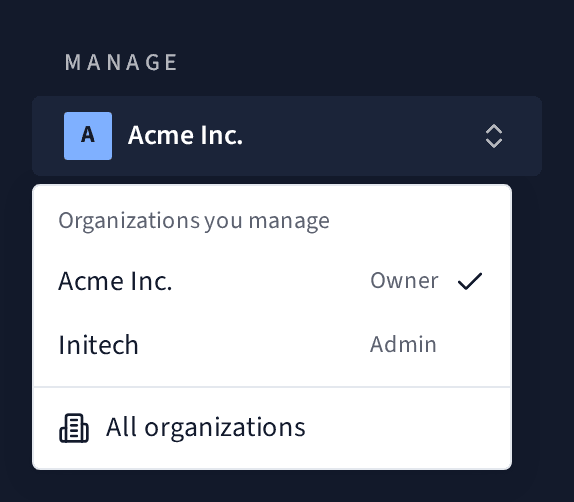
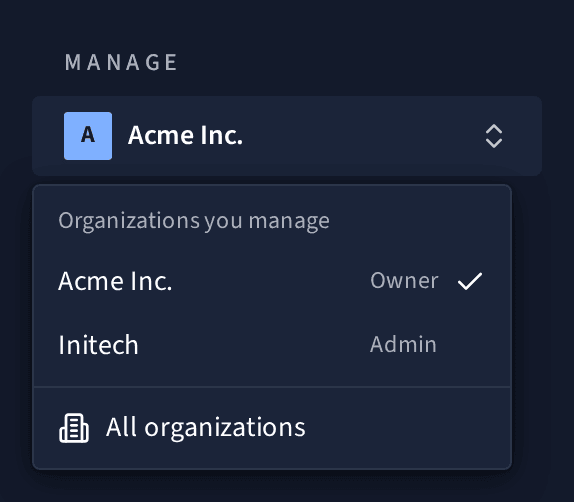
Members see a read-only page for the organization: who's in it, its domains and their own membership. Owners and admins also see Manage in the sidebar, with the organization's Overview, Members, Domains, Single sign-on, Audit log and Settings. If you manage more than one organization, switch between them at the top of Manage.
Managed and unmanaged accounts
Every member's account is one of 2 kinds, shown in Members under Account:
- Unmanaged accounts have their own Zym Labs login. The person owns the account; your organization only gives it access. Removing them takes away that access and nothing else.
- Managed accounts were created when someone first signed in through your organization's single sign-on, so they belong to your organization. You can't remove them, but you can disable them, which signs them out, and owners can delete them for good.
Sensitive changes
Some changes ask you to Confirm it's you: you sign in again in a window, and the change goes ahead. You won't be asked again for 10 minutes. It's asked for when you:
- transfer ownership or delete the organization
- change how people sign in, or turn on or require single sign-on
- claim a domain or delete accounts
- invite, promote, remove or disable owners and admins
What's next
- Invite and manage members: invitations, roles and removing people.
- Verify a domain: prove your company owns its email domain.